How to Sync Lyrics to Music
Syncing lyrics to music means attaching timestamps to your lyrics text so words appear on screen exactly when they are sung. How they appear depends on the timing level you choose: a line-level sync shows one full line at a time, while a word-level sync highlights each word individually as the vocalist reaches it.
Karadeo's lyrics video templates support both display modes. Pick a template, upload your audio, paste your lyrics, and let AI sync handle the timing. This guide walks through the full process.

 Westin Tanley
Apr 23, 2026 · 5 min
Westin Tanley
Apr 23, 2026 · 5 min
What is lyric sync?
Lyric sync is the process of attaching timestamps to lyrics text so each word or line appears on screen in time with the audio. An unsynced lyrics file is just plain text. It shows all the words but gives no indication of where the song currently is. A synced lyrics file adds timing data so the player knows exactly when each word should appear and highlight.
There are two levels of sync:
- Line-level sync: one start time per line. The whole line appears at once and stays visible until the next line. Clean, readable, works well for slower songs or ambient music where you want the lyrics to feel calm rather than driven.
- Word-level sync: each word has its own timestamp. Words highlight one at a time as the song progresses, giving a precise, moving guide that follows the vocalist in real time.
For a deeper look at the difference, see Word-Level vs Line-Level Karaoke Timing.
Lyrics video templates — line-level and word-level
Karadeo offers six lyrics video templates — cinematic styles built for sharing on YouTube, TikTok, Instagram Reels, and Apple Music. Each lyrics video template is designed around a specific display mode, so the style you choose tells the viewer how your lyrics move.
Word-level lyrics video templates
Word-level templates highlight each word as it is sung, giving the video a driven, energetic feel that follows the vocalist in real time. These work best for songs with a clear vocal delivery and lyrics you want the viewer to track closely.
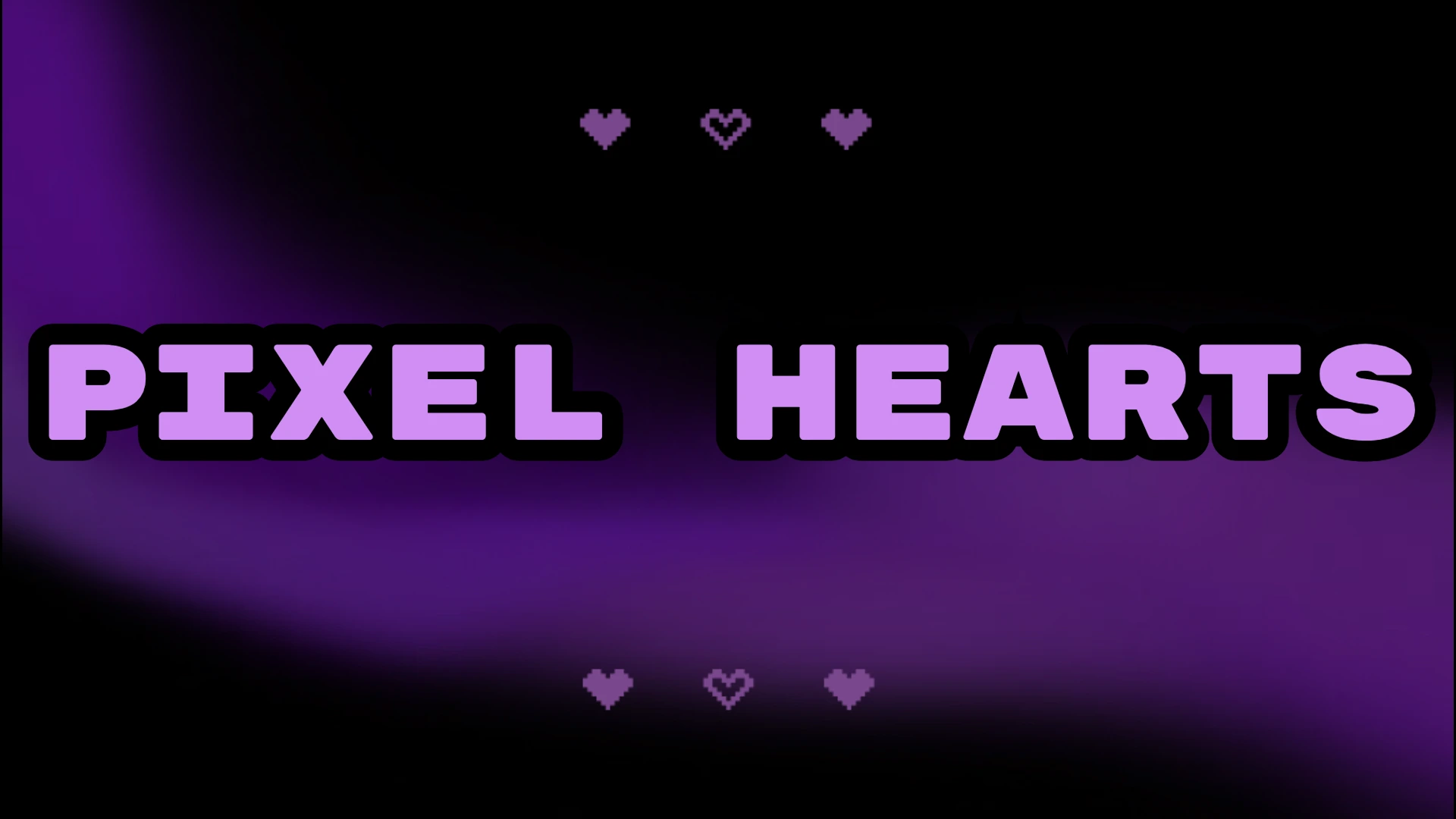
Pixel Hearts — A retro-style template with pixel art hearts, chunky bold uppercase text, and a moody purple glow. Built for pop, K-pop, hyperpop, and gaming-inspired music. Every word lands like a level-up.
Golden Hour — A warm, cinematic template with golden bokeh light and italic serif typography. Built for pop, indie, folk, and emotional ballads. The word-by-word highlight feels intimate, like each lyric is being written in real time.

Line-level lyrics video templates
Line-level templates reveal one full line at a time, giving the video a calmer, more cinematic feel. These work well for slower songs, ambient music, or any style where you want the visuals to breathe rather than pulse.
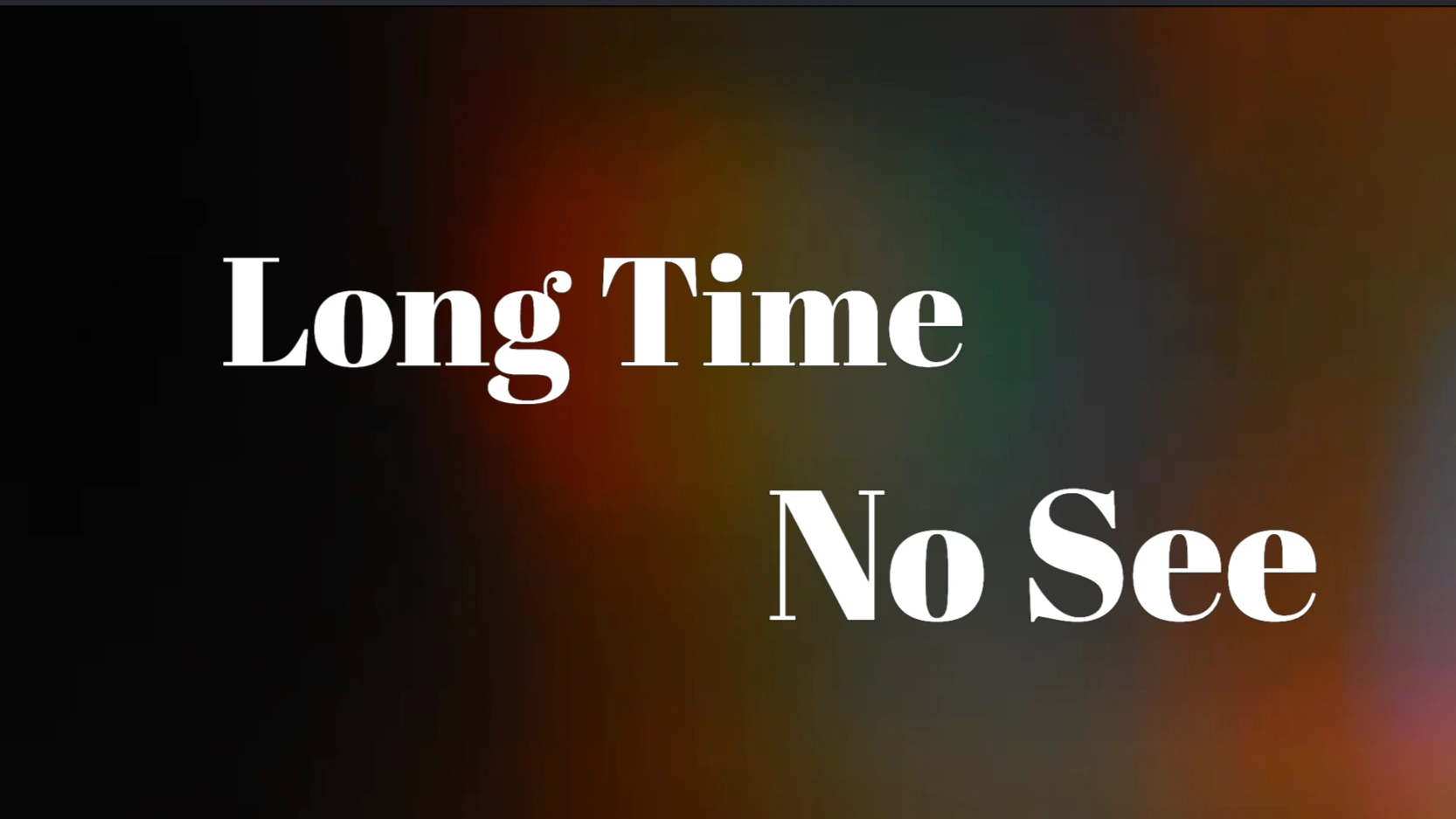
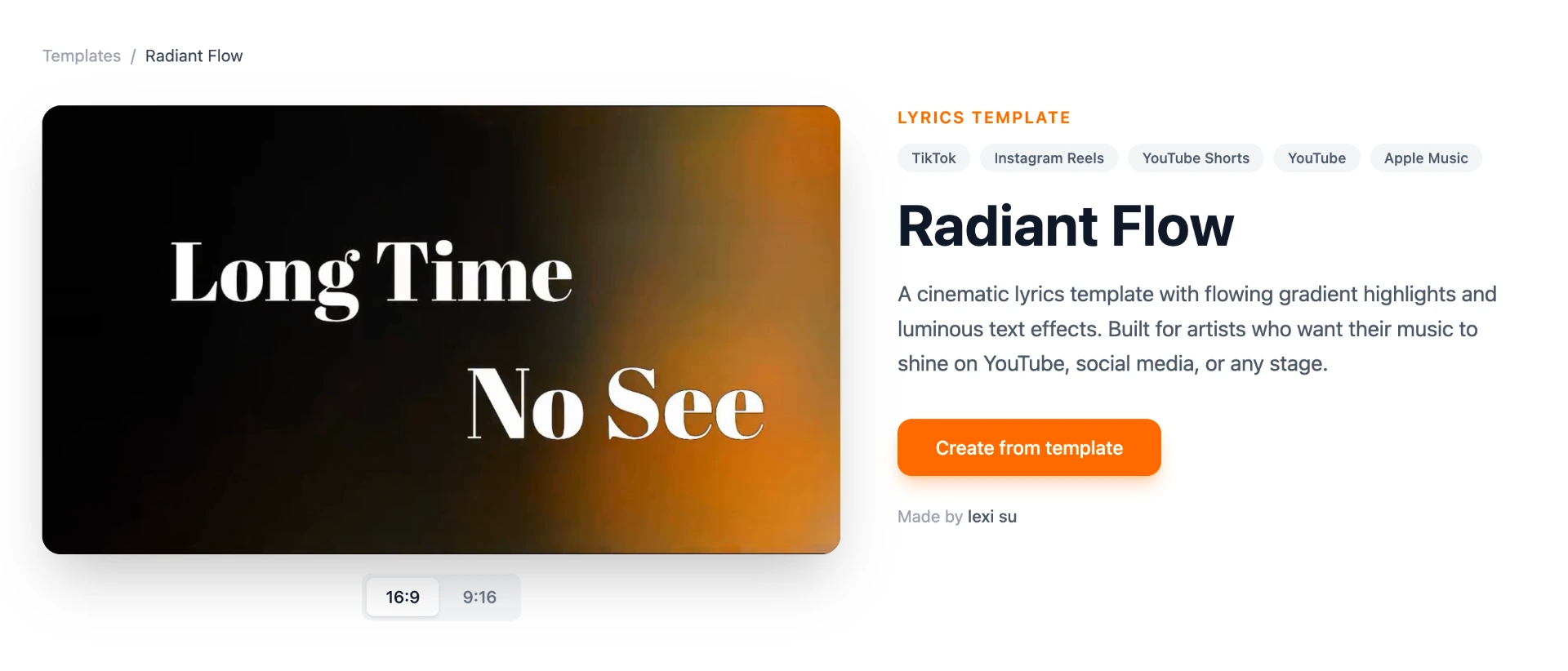
Radiant Flow — Flowing gradient highlights and luminous text effects. Suits ballads, electronic, and atmospheric music where the feeling matters as much as the words.
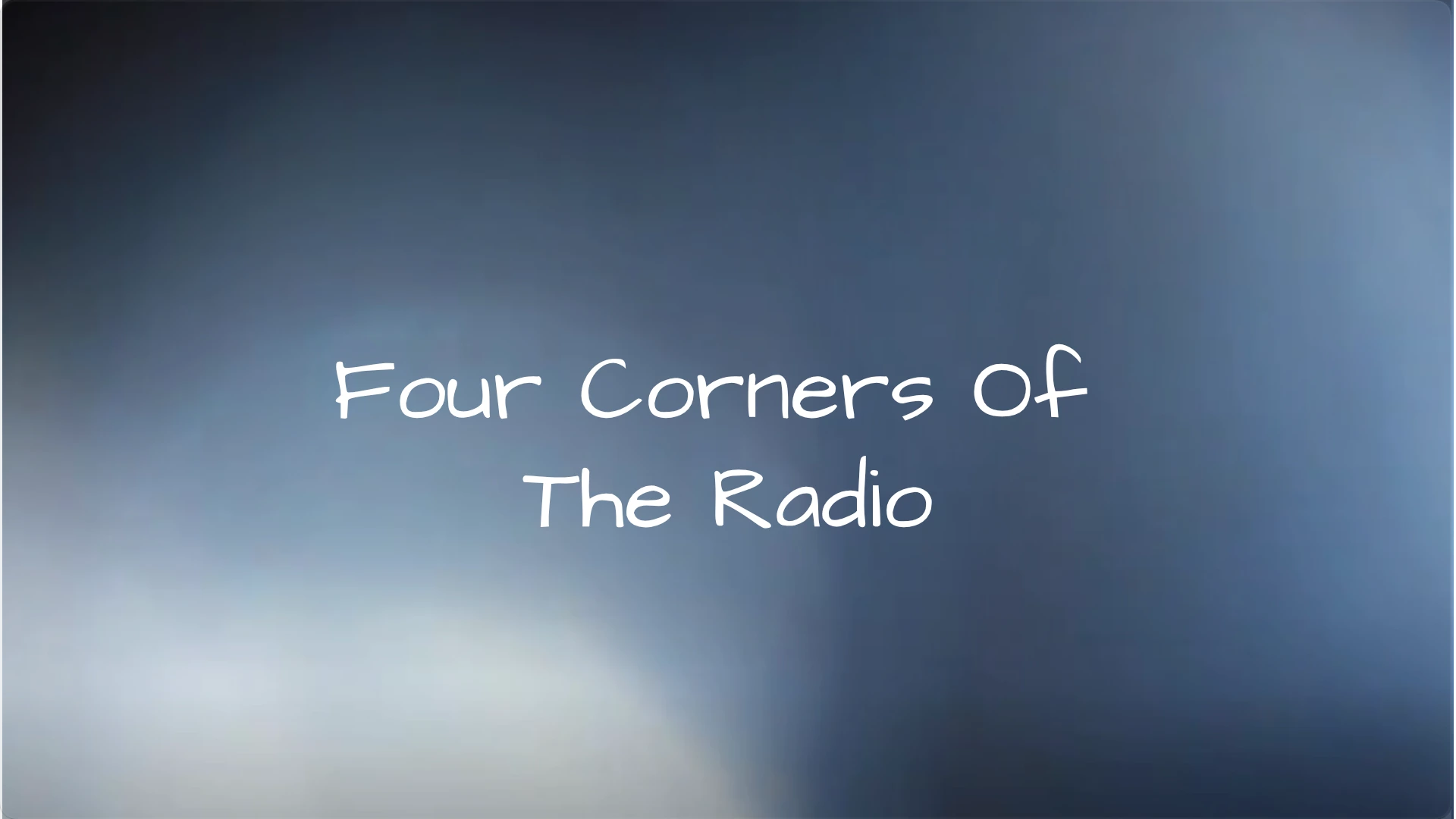
Aura Glow — Soft glowing auras and gentle color washes. Designed for lo-fi, R&B, soul, and singer-songwriter styles where warmth and space between the words is part of the mood.
All templates support both 16:9 (YouTube, Apple Music) and 9:16 (TikTok, Instagram Reels, YouTube Shorts). Toggle the aspect ratio at the top of the templates page before choosing.
How to sync lyrics to music step by step
Step 1: Choose a template
Go to Karadeo Templates and pick the visual style that fits your song. Each template works for both line-level and word-level lyrics — the sync depth you choose later determines how the animation plays out. Click any template to preview it, then click Create from template to open the editor with that style pre-applied. No account or download needed.
Step 2: Upload your audio
Upload your audio or video file. Karadeo supports MP3, WAV, M4A, OGG, MP4, and other common formats.
After uploading, Karadeo automatically separates the vocals and instrumental. This is what the AI uses as the sync reference: it listens to the vocal track and maps each word to its position in the audio. If you already have a separate instrumental track, you can add it in the editor after syncing.
Step 3: Add your lyrics
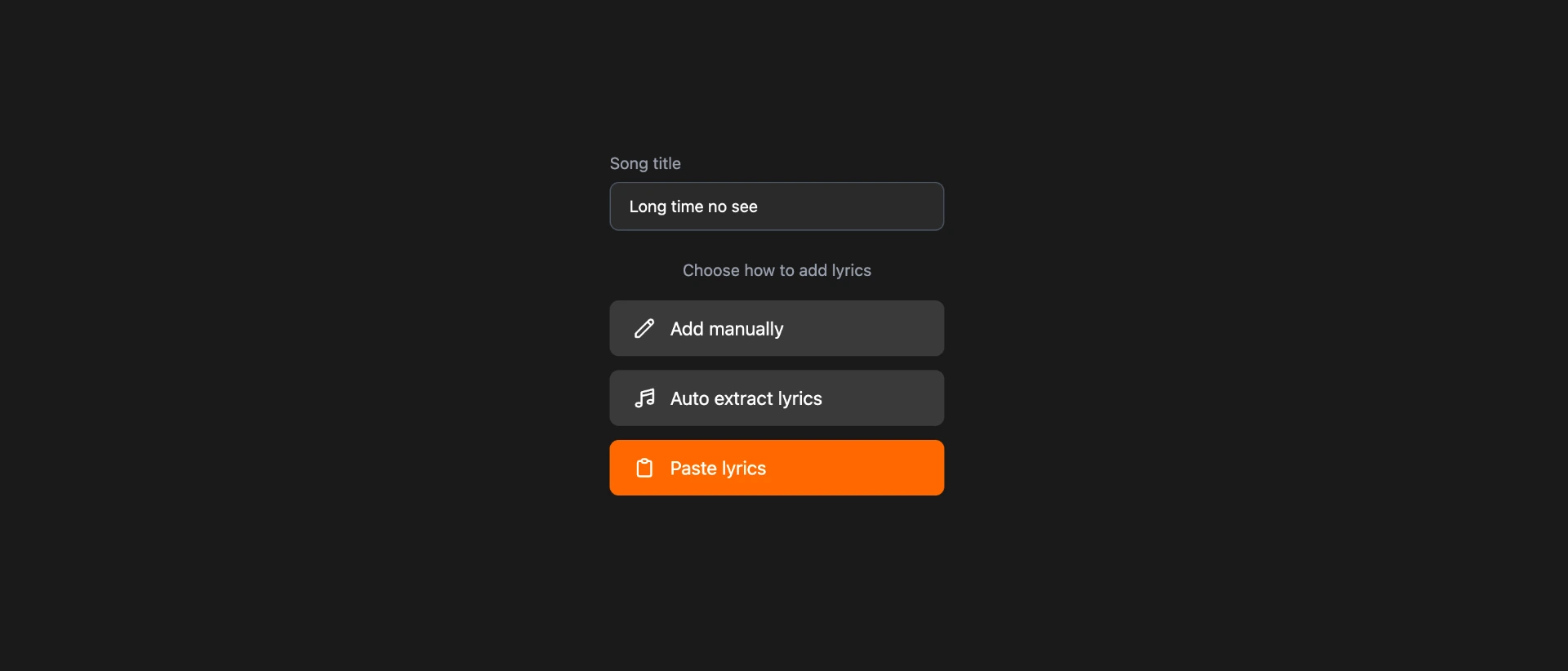
There are three ways to add lyrics in the editor:
- Add manually — type each line directly into the editor and drag them into position on the timeline by hand
- Auto-extract lyrics — let AI transcribe the vocals from your audio and generate a first draft automatically
- Paste lyrics & sync — paste your lyrics as plain text, then let AI sync attach timestamps to every word
We recommend Paste lyrics & sync. It gives you accurate lyrics text from the start and lets AI handle all the timing, so you get precise word-level sync without any manual tapping or transcript cleanup. Auto-extract can mishear words, especially proper nouns, names, or non-English lyrics. Manual timing takes as long as the song itself.
Each line you paste becomes a separate block on screen, so break the text into the chunks you want visible at once before pasting.
Step 4: Review and export
Press play and watch each line appear in your chosen template. For a line-level template like Radiant Flow or Aura Glow, check that each line appears at the right moment and clears cleanly before the next one. Drag the left or right edge of any lyrics block on the timeline to adjust when a line appears or disappears.
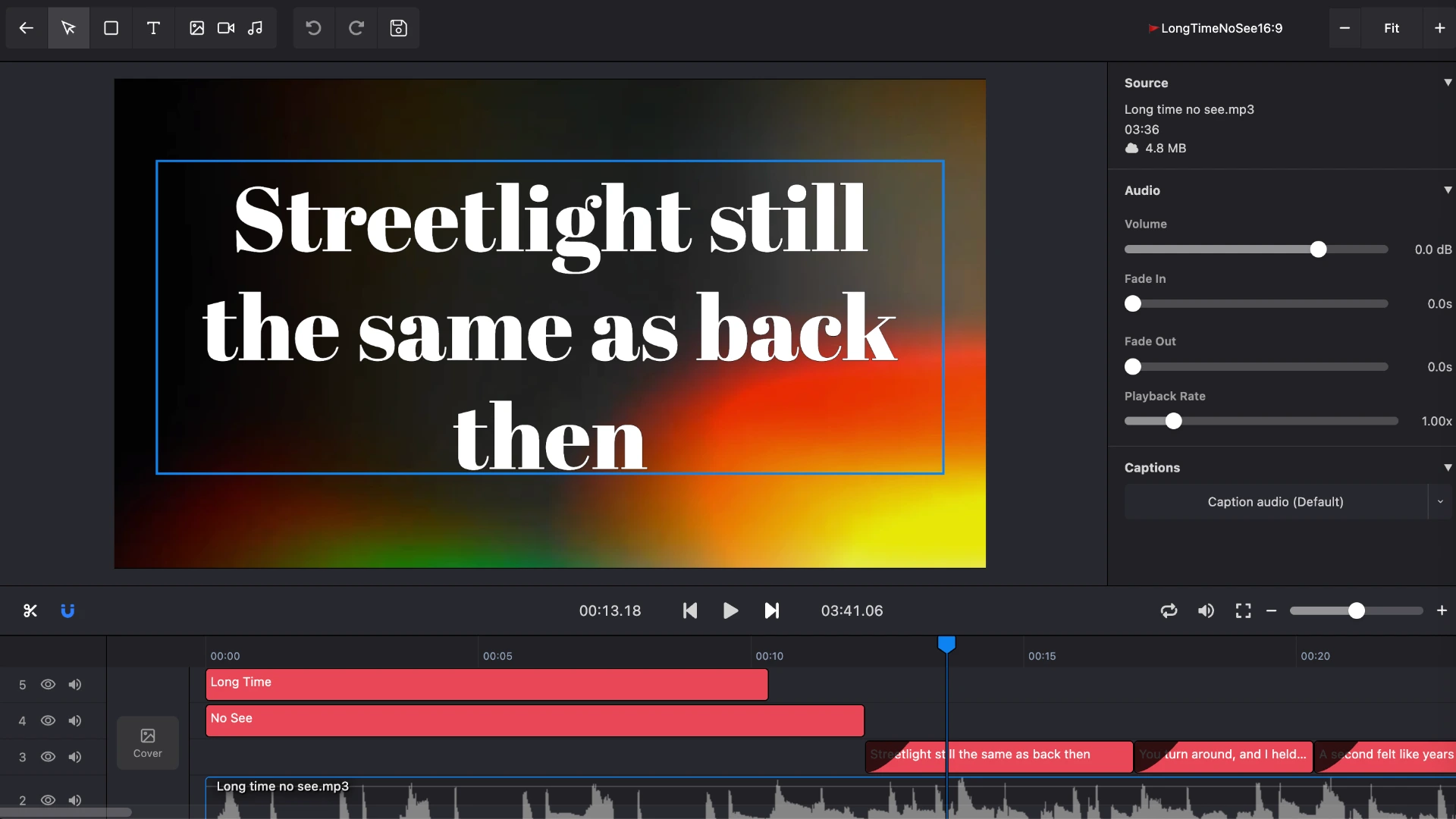
If you chose a word-level template like Pixel Hearts or Golden Hour, expand any lyrics block on the timeline to reveal individual word tracks and fine-tune when each word highlights.
Once you are happy with the sync, export as a video. Karadeo renders the lyrics directly in your chosen template and exports an MP4 ready to post on YouTube, TikTok, Instagram Reels, or Apple Music.
If you want to add lyrics to an existing music video rather than start from a template, see How to Add Lyrics to a Music Video.
Frequently asked questions
Which template should I choose?
Pick a word-level template like Pixel Hearts or Golden Hour if you want each word to highlight as it is sung. Great for energetic songs and close lyric tracking. Pick a line-level template like Radiant Flow or Aura Glow if you want one full line to appear at a time. Better for slower or atmospheric music.
Can I make a vertical lyrics video for TikTok or Instagram Reels?
Yes. All lyrics video templates support 9:16 vertical format for TikTok, Instagram Reels, and YouTube Shorts. Toggle to 9:16 at the top of the templates page before choosing your style.
Is it free to make a lyrics video?
Yes, Karadeo is free to use. A watermark is added to free exports. Upgrade to remove the watermark and download in full HD.
Can I customize the colors and fonts?
Yes. Once you open a template in the editor, you can change the text color, highlight color, font, and background to match your style.
Do I need the lyrics before I upload?
You need the lyrics text to run word sync. Paste them after uploading your audio. If you do not have them, Karadeo's AI transcription can generate a first draft from the audio to start from.
How long does AI sync take?
AI sync typically takes 10 to 30 seconds for a full song, depending on the length of the audio.
Does AI sync work on any language?
Yes. Karadeo's AI sync supports most major languages. Accuracy is highest on English recordings but the model handles multilingual lyrics well.
How accurate is AI word sync?
Accuracy is typically above 95% on clean, clear recordings. Fast sections, overlapping vocals, and unusual pronunciations are the most common sources of small errors, and these are easy to fix on the timeline.
Conclusion
The sync level you choose shapes the feel of your lyrics video as much as the visual style does. Word-level sync with Pixel Hearts or Golden Hour gives each word its own moment. Line-level sync with Radiant Flow or Aura Glow lets the music breathe between lines. Both are ready in minutes with AI sync.
Start at Karadeo Templates, pick the style that fits your song, and click Create from template. Paste your lyrics, run auto-sync, and export. Your lyrics video is ready to post.
Found this helpful? Share it with others!