How to Make a Spotify Canvas
A Spotify Canvas is a short looping video that plays behind your song in the Spotify mobile app. According to Spotify's own data, tracks with a Canvas see up to 120% more streams and 114% more saves, making it one of the simplest ways to grow your presence on the platform without spending on ads.
 Westin Tanley
Mar 4 · 5 min
Westin Tanley
Mar 4 · 5 min
What is a Spotify Canvas?
A Spotify Canvas is a 3–8 second looping video that plays behind your song in the Spotify mobile app, replacing static album art. It plays silently and loops for the full duration of the track.
Spotify introduced Canvas in 2019 and has since made it one of the most visible artist features on the platform. Adding a Canvas costs nothing and takes minutes. According to Spotify for Artists, tracks with a Canvas see more saves, shares, and clicks to the artist profile.
What Makes a Good Canvas?
The best Canvases share a few things in common:
- They're abstract or atmospheric. Faces and text are distracting. The best canvases use looping visuals like flowing colors, particles, nature footage, or cinematic textures that complement the music without competing with it.
- They loop seamlessly. A jarring cut every 5 seconds breaks the experience. The video should feel like it could play forever.
- They match the mood. A fast and energetic EDM track needs different visuals than a slow acoustic ballad. Color, motion speed, and texture all carry emotional weight.
- They're vertical (9:16). Spotify Canvas plays on mobile in portrait mode. Horizontal or square videos will not work.
How to Make a Spotify Canvas (Step by Step)
Step 1: Extract your song's chorus
Your Canvas plays while the song is streamed, but listeners mostly skip to the chorus. That means the best section to analyze for your Canvas is the hook, not the intro.
Use the free Chorus Extractor to upload your full track and automatically detect the chorus. You can preview it, adjust the trim points, and download it as a WAV file.
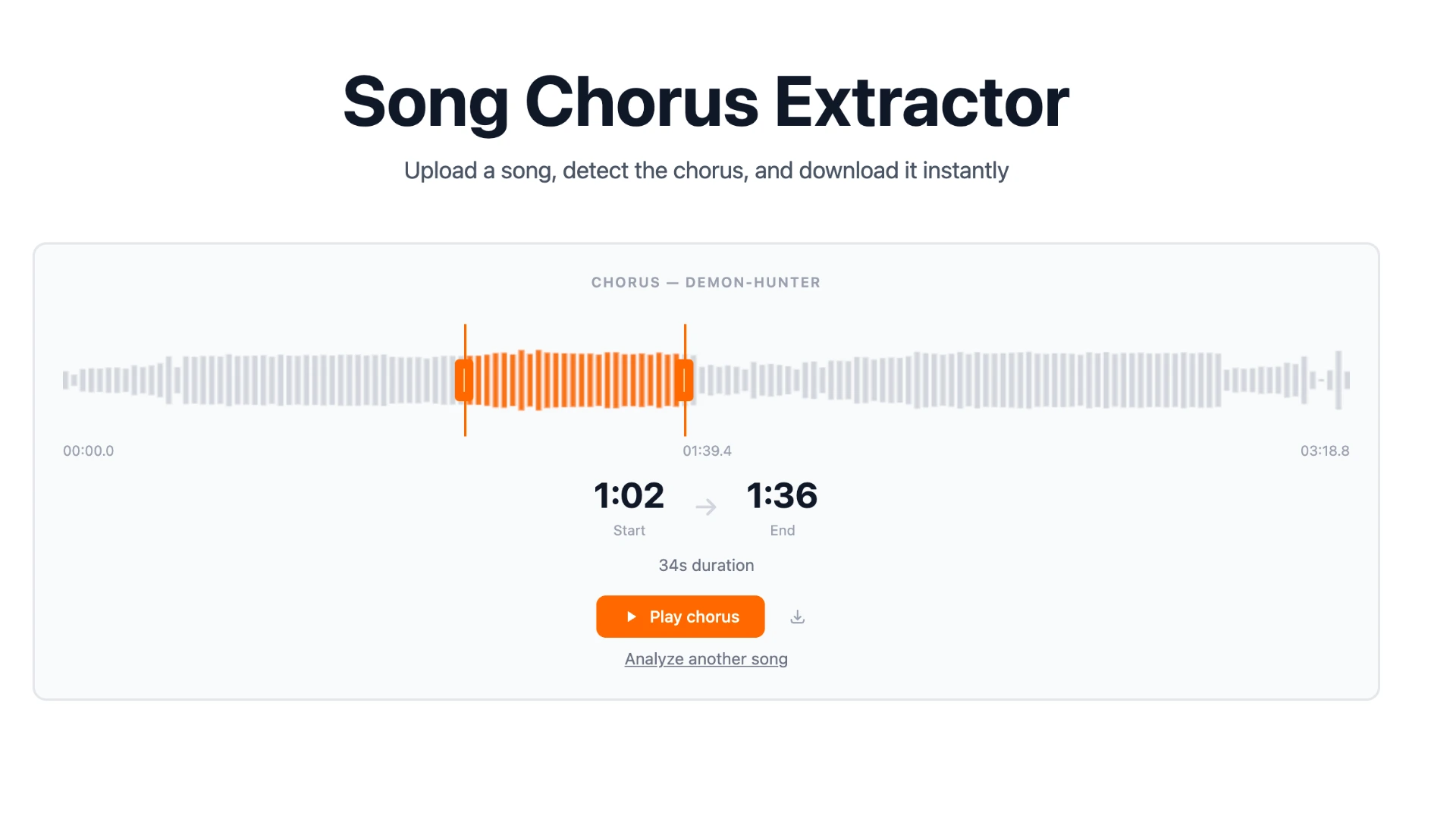
This gives you a short and representative clip that captures the peak energy of your song, which is exactly what the Canvas AI needs to generate the right visuals.
Step 2: Generate your Canvas video
Upload the chorus clip to the Spotify Canvas Generator. The tool analyzes your audio locally in the browser so no file is ever uploaded, and it extracts three key features:
- BPM: determines the motion speed of the visuals, from slow drift to kinetic pulse
- Key: major keys map to warm and bright palettes; minor keys produce darker and moodier visuals
- Energy: high energy tracks get bold and vivid visuals; low energy tracks get soft and ethereal ones
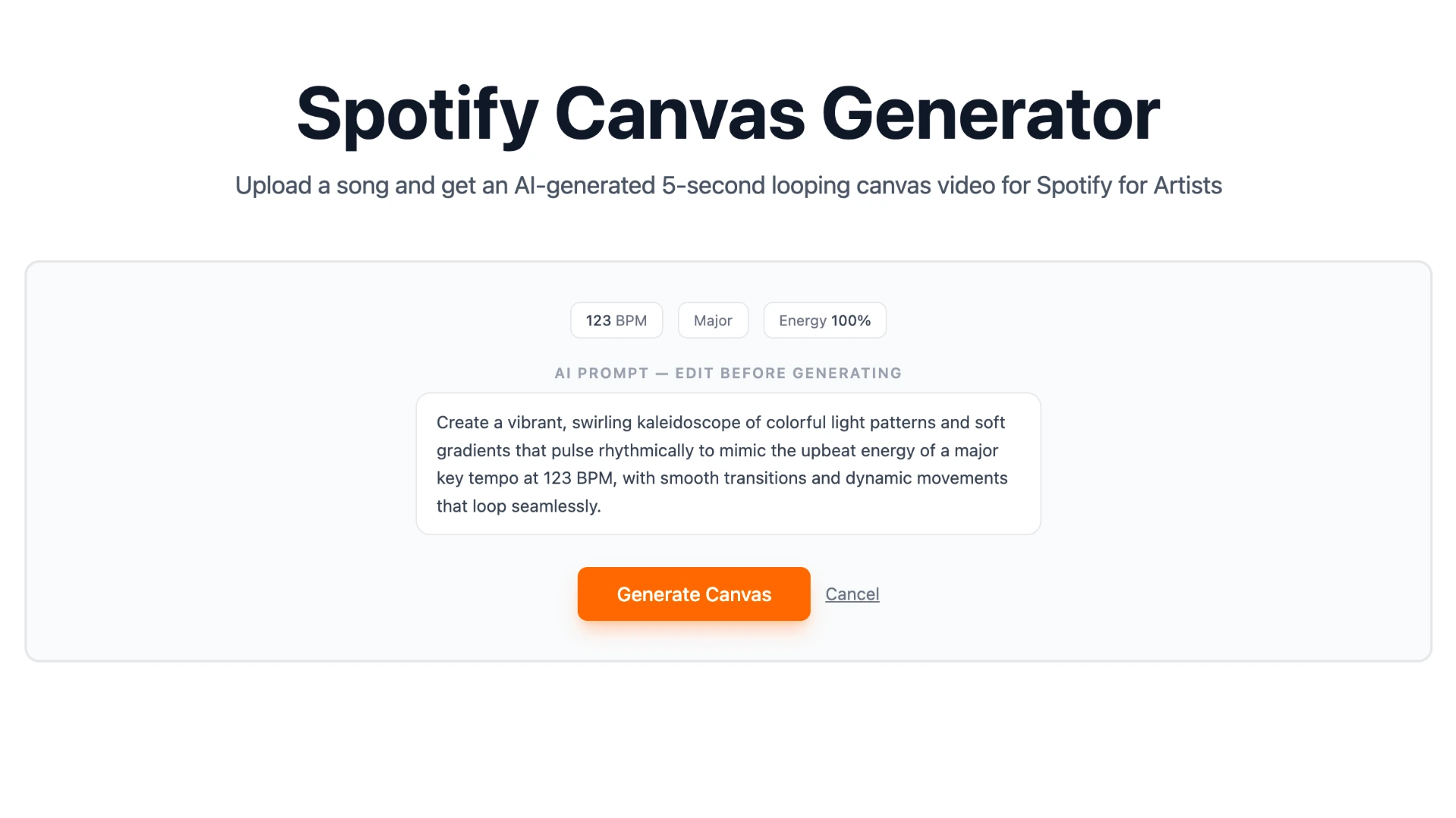
These features are converted into an AI video prompt, which you can review and edit before generating. The AI then creates a 5-second looping 9:16 MP4 using Luma Ray Flash 2, a fast video generation model optimized for short looping clips. 5 seconds is the sweet spot: long enough to show real movement, short enough to loop smoothly without feeling repetitive.
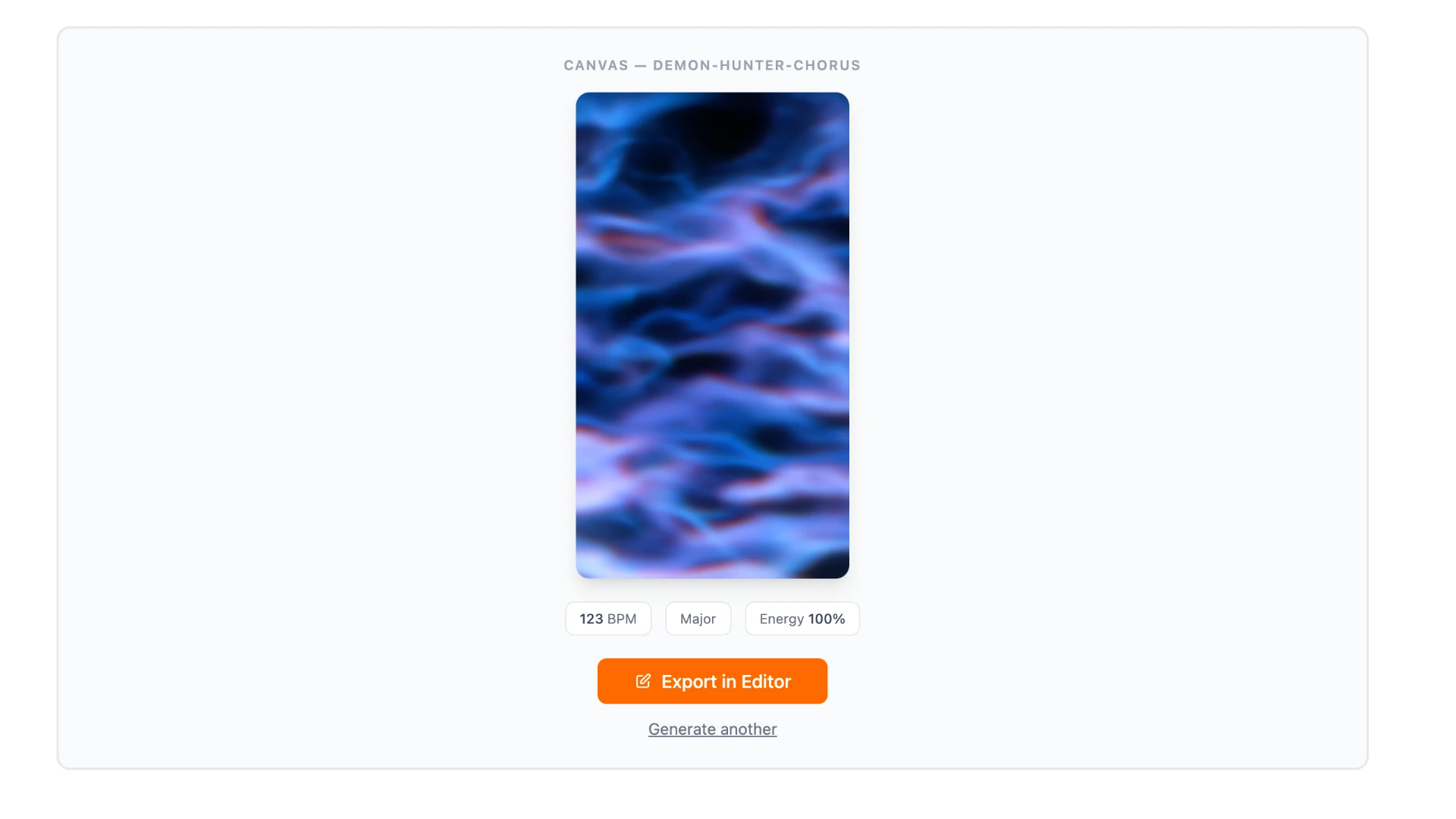
The whole process takes about 30–60 seconds. When it's done, preview the loop and download the MP4.
Step 3: Export in Editor
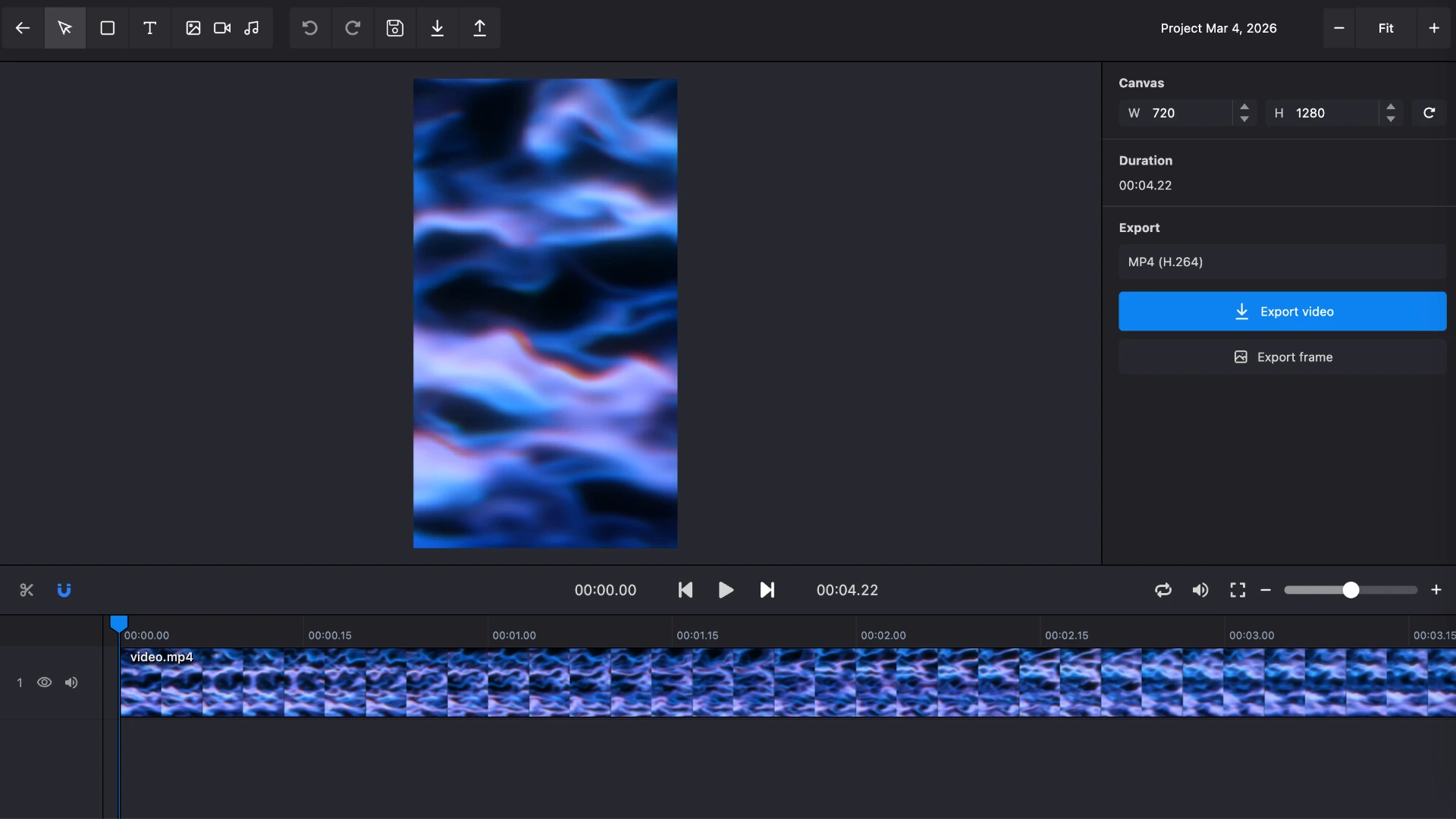
Once the Canvas is generated, click Export in Editor to open the video in Karadeo's editor. From there you can make any adjustments you want, then export the final MP4 and upload it directly to Spotify for Artists.
Frequently Asked Questions
What size does a Spotify Canvas need to be?
Spotify Canvas must be a vertical MP4 (H.264) at a 9:16 aspect ratio, between 3–8 seconds long, and under 10MB. Audio is optional since Canvas plays silently.
Can I make a Spotify Canvas for free?
Yes. Karadeo's Spotify Canvas Generator lets you create a Canvas video for free. Just upload your audio and the AI generates a matching looping video based on your song's BPM, key, and energy.
Conclusion
A Spotify Canvas is one of the easiest wins available to any artist on Spotify. It costs nothing, takes a few minutes, and measurably improves how listeners engage with your track. With Karadeo, you skip the design tools entirely — your song's own BPM, key, and energy drive the visuals, so the result always fits the music.
Start with the Chorus Extractor to isolate the best part of your song, then generate your Canvas with the Spotify Canvas Generator. From there, open it in the editor, make any final touches, and export it ready for Spotify for Artists.
Found this helpful? Share it with others!