AI Background Imagery for Music Performances
Every song deserves more than a static thumbnail. Background imagery turns any track into a full visual performance, and you're not locked into one way of getting there: generate it with AI, film or design it yourself, or start from a background that's already built into a Karadeo template.
 Westin Tanley
Jul 24 · 5 min
Westin Tanley
Jul 24 · 5 min
Why background imagery matters for music
A song without visuals is easy to scroll past. Platforms built around video, whether that is YouTube, TikTok, or Instagram, reward content that has something to look at, and listeners are more likely to stop and engage with a track when it is paired with a matching visual.
For independent musicians and creators, filming a performance video is often out of reach. It usually means a location, lighting, a camera operator, and hours of editing. That's why Karadeo gives you three ways in: generate a background with AI, bring your own human-made footage, or start from a background already built into a template.
Add a background to Music with AI
With Karadeo's Add Background tool, the process starts with your track. Upload an audio file and the tool listens to it, then generates a background image that matches its tone, whether that is an upbeat pop track or a slower ballad.
The visuals are not random. They are built to reflect the character of the song, so the final result feels like a real performance rather than a generic loop playing behind the audio. Once it's generated, you land directly in the Karadeo editor with your song and the background already placed on the timeline.
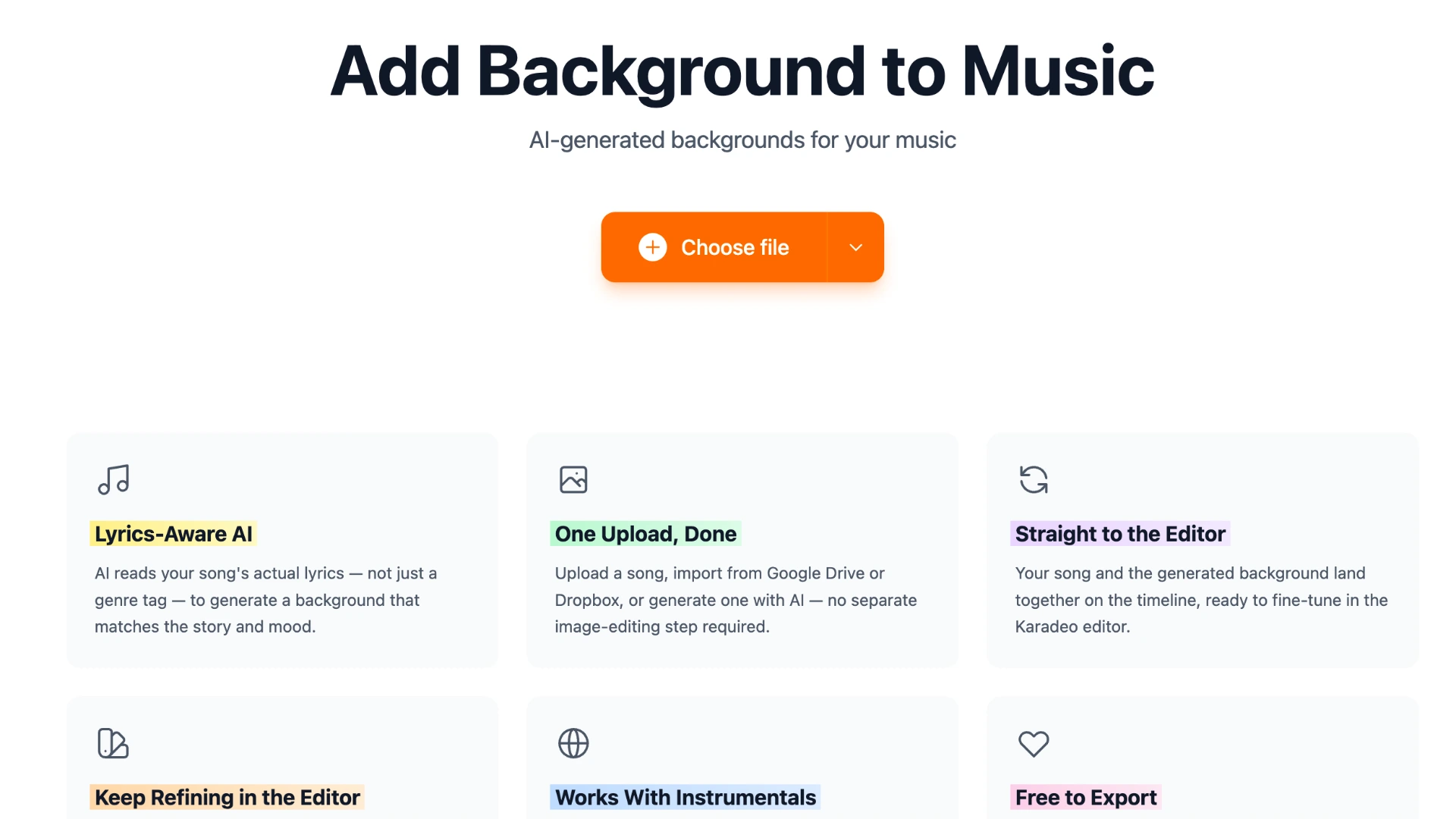
One thing you'll notice: Add Background gives you a matching image or video, but it does not add synced lyrics on top. If you want the lyrics themselves animated in time with the song, head to Templates instead, pick a lyrics style you like, then input your song and lyrics to generate the video with both the imagery and the synced lyrics together. And if the template's background isn't quite what you had in mind, you're not stuck with it, you can still generate a new one with AI or upload your own background once you're in the editor.
Fine-tune it, or generate a video background, in the editor
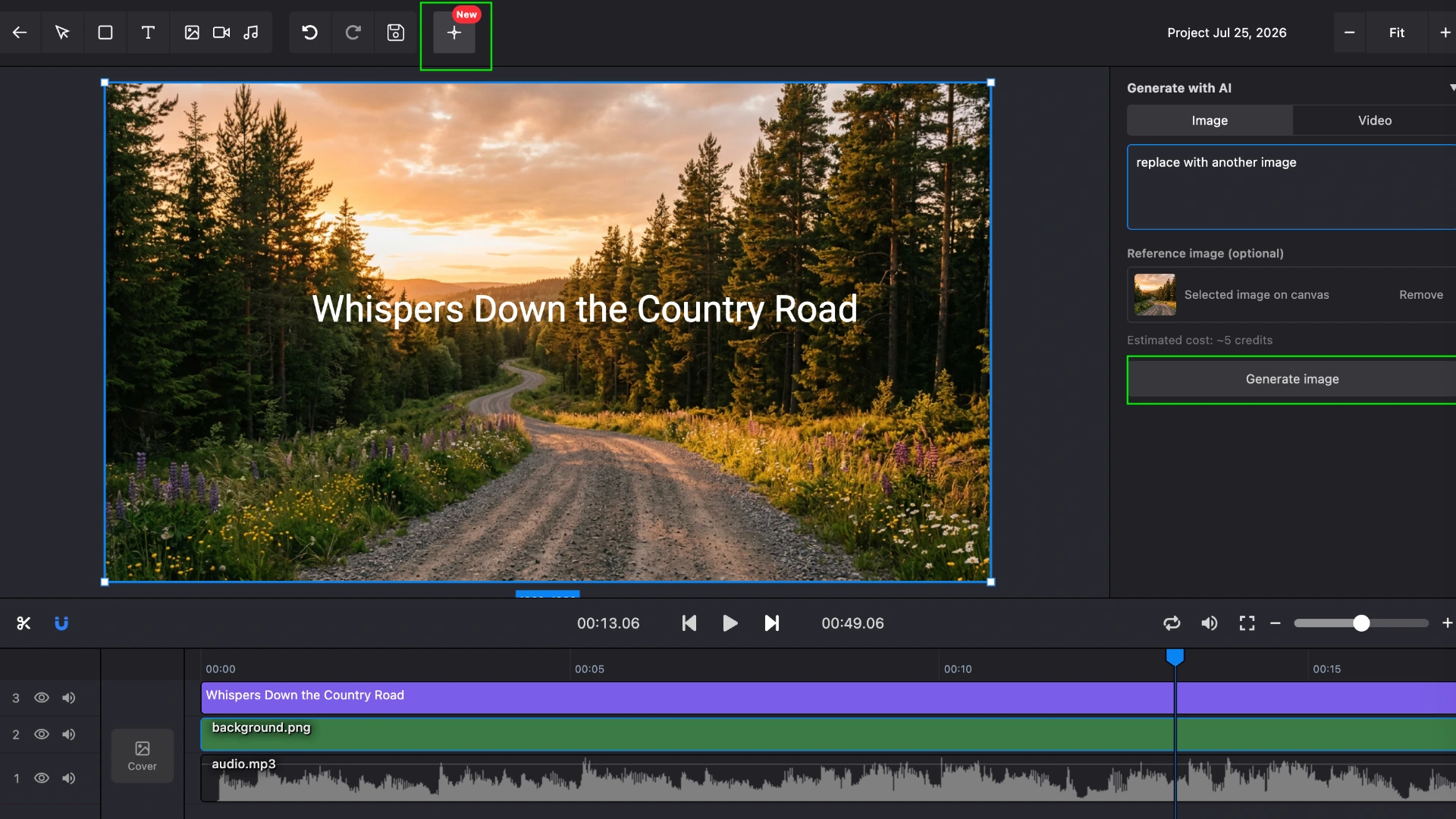
Landing in the editor isn't the end of the process, it's where you take control. The Generate with AI button in the editor's toolbar reopens the same generation tool inline, with Image and Video tabs, so you can regenerate the image with a new prompt, reference a different image, or switch to the Video tab and generate a video background instead of a still image.
This is the fastest way to close the gap between "close enough" and "exactly right" without leaving the timeline, regenerate as many times as you need, in image or video mode, until the background matches the mood of the song.
Or use your own human-made background
Not every background needs to come from AI. If you already have footage, a photo you shot, a video clip, artwork you designed, upload it as an asset in the editor and place it on the background layer. Human-made and AI-generated visuals aren't mutually exclusive either: you can generate a base background with AI and then layer your own image or video clip on top, or start from your own footage and use AI generation for a section you're missing.
Or reuse a background from a lyrics video template
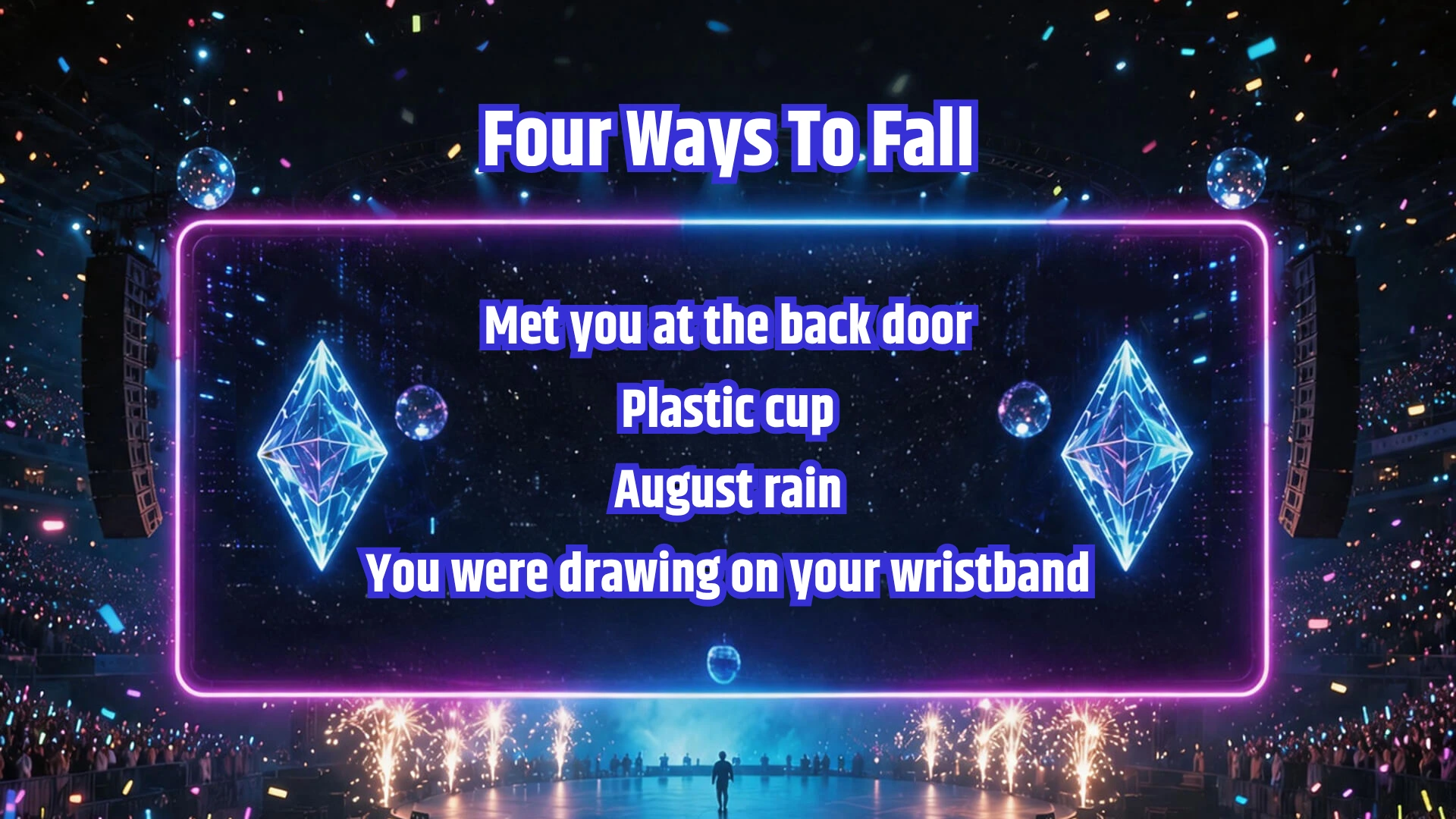
If you'd rather skip generation and uploading entirely, Karadeo's lyrics video maker templates come with a background style already built in. Each template, from moody neon looks to soft pastel scenes, pairs a background aesthetic with matching text animation, so picking a template that fits your song's mood gets you a finished-looking background with zero extra steps.
This is also the one path that gets you synced lyrics by default, unlike Add Background, a template takes your song and lyrics together and animates the words in time with the audio automatically, on top of the background you picked. If you still want to swap in a different look afterward, you can regenerate the background with AI or upload your own once you're in the editor.
Frequently asked questions
What is background imagery for music?
It's the visual layer behind a song, whether that's an AI-generated image or video, footage you shot or made yourself, or a background that's already built into one of Karadeo's lyrics video templates, so a track can become a shareable performance video.
Do I need a video or camera to use this?
No. If you don't have footage, Add Background generates one from just an audio file, and Karadeo's templates come with their own backgrounds baked in. A camera is only needed if you want to use your own human-made footage.
Can I generate a video background instead of a still image?
Yes. Once you're in the Karadeo editor, the Generate with AI tool in the toolbar can produce a video background as well as an image, and you can keep regenerating until it fits the song.
Can I use my own photo or video as the background?
Yes. Upload your own image or video clip as an asset in the editor and drop it onto the background layer, replacing or sitting alongside any AI-generated visual.
What if I just want a background that's already done for me?
Karadeo's templates gallery includes lyrics video templates with a background style already built in, so you can pick one that matches your song's mood without generating or uploading anything.
Can I generate a song and a background in the same place?
Yes. Karadeo's Music Generator lets you generate a track from scratch, and you can layer background imagery on top of it in the same flow.
Does this work in languages other than English?
Yes. The Add Background tool supports multiple languages, so the same visual quality is available to a global audience.
Conclusion
There's no single right way to get a background for your music performance video. Generate one with AI at Add Background, fine-tune it or switch to a video background in the editor, bring your own human-made footage, or skip all of that and pick a background that's already built into a template. Whichever path you start on, you can mix in the others without leaving Karadeo.
Found this helpful? Share it with others!